What a moodboard generation gives you
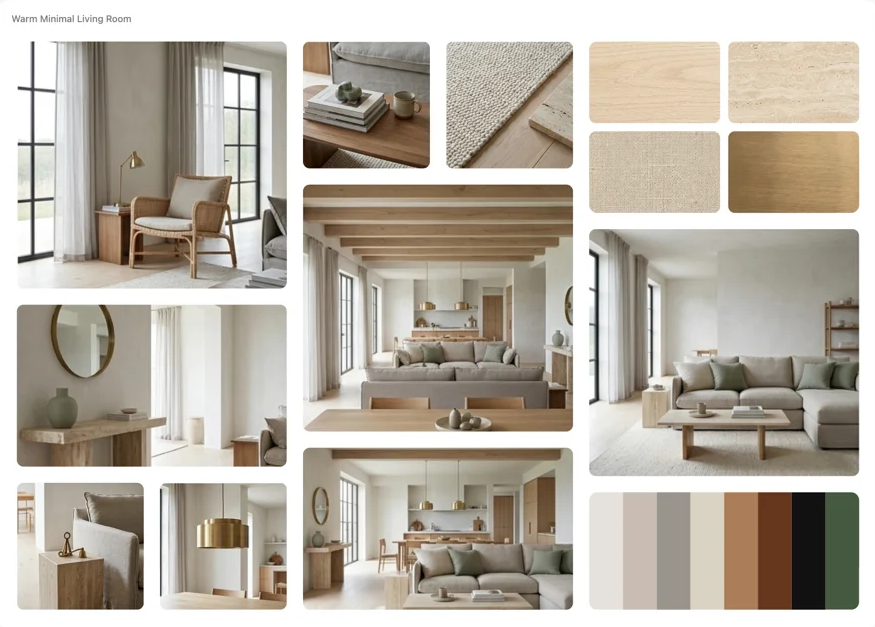
One ask produces three pieces, all built from the room you are designing rather than from stock inspiration: a moodboard of curated scenes and details in the room’s own mood, a material board with its key surfaces as swatches, and a color palette extracted from the image itself. They land on the canvas as separate pieces, next to the render or photo they came from.
From photo to moodboard
- Put the room on the canvas
Drop a room photo onto the canvas, or start from a render you already made in Hiera. The board is built to match this image, so the better it captures the mood you want, the better the board.
- Ask for the moodboard
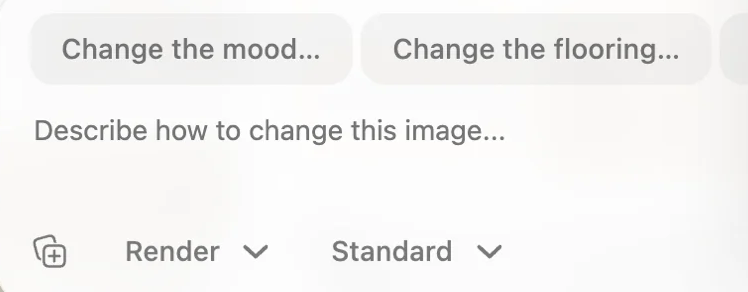
Select the image and say “create a moodboard from this render”. That is the whole brief; Hiera reads the style, the materials and the light from the image itself.
- Adjust the crops
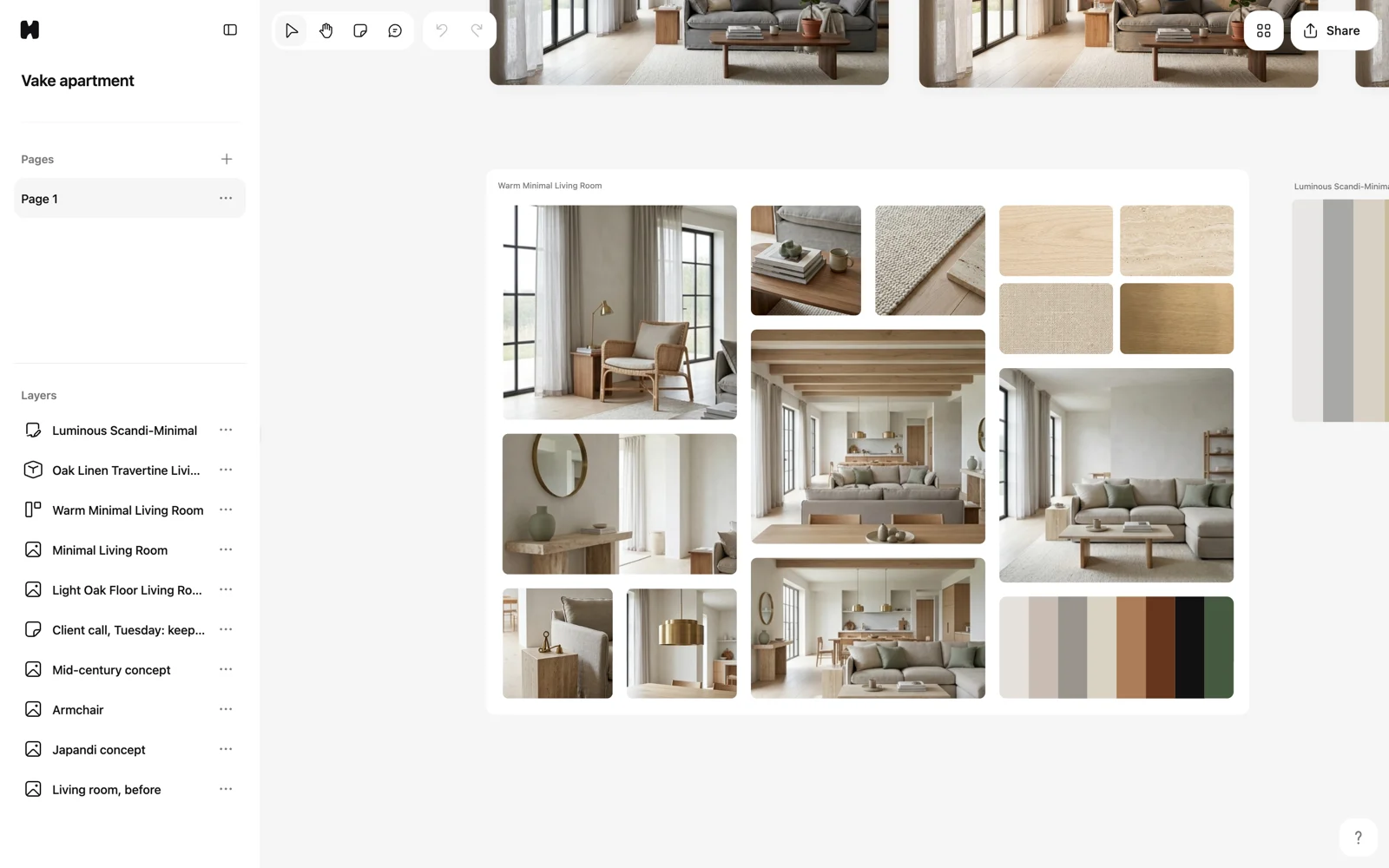
Any slot can be panned and zoomed until the crop reads right. The board is a live piece of the canvas, not a locked export.
Starting from a plain “before” photo? Generate a styled render first and build the moodboard from that; the board then reflects the direction you are proposing, not the room as it stands.
Presenting it
The moodboard lives next to the renders it belongs to, so a client review is one link: share the file, and the client sees the direction, the board and the palette together, and can pin comments straight on any of them. No PDF export, no version confusion; when the board changes, the link already shows the new one.
Where to go from here
How generation works in general, including costs, is covered in Generating with AI. The building blocks a board is made of are in Canvas building blocks. For the full use case, see the AI moodboard generator page, or open the app and make one from your own room; the workspace is free.