How workspaces are organized
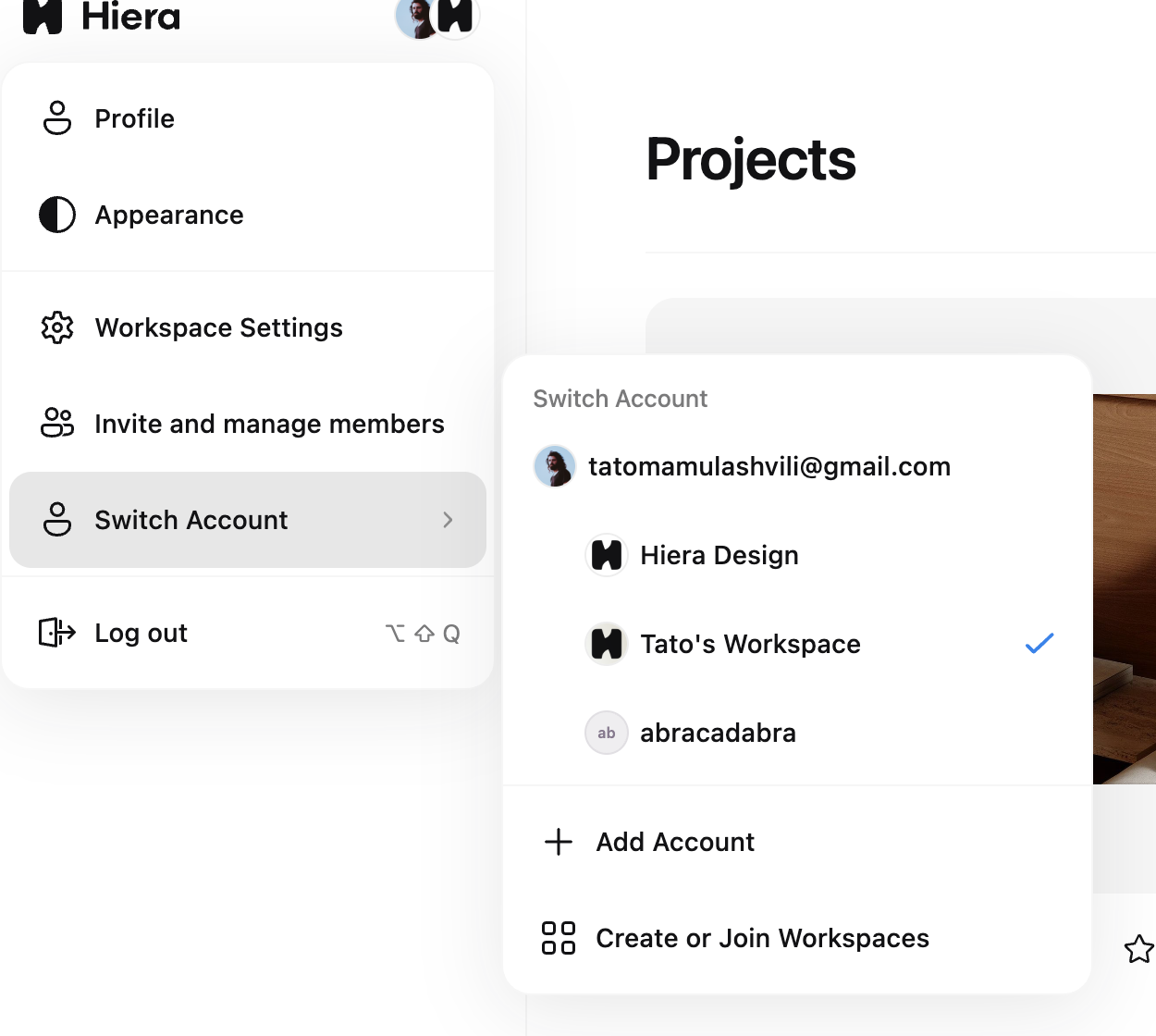
A workspace is the home for a team: its projects, its members and its AI credit balance live together. You always have a workspace of your own, and at the same time you can be a member of other people’s workspaces — your own studio plus a client’s, for example. Each one keeps its own projects, members and credits, completely separate.
Switching is instant: open the avatar menu in the dashboard sidebar and choose Switch Account — every workspace you belong to is listed there, with a check on the active one. The same menu is where you add another account or create and join new workspaces.
Workspace roles
Every member has one of four workspace roles, and the role decides what they can do:
- Owner
Full control: manages members and settings, sees billing, and is the only role that can purchase credits.
- Editor
Does the design work: uses AI credits, sees the balance and the member list.
- Viewer
Looks around: sees members and the credit balance, but cannot spend credits.
- Guest
The lightest access — invited into specific work rather than workspace management.
Roles inside a project
Projects have their own, finer-grained roles: an owner or editor can change the canvas and invite others, while a commenter or viewer can open the file and leave comments but not edit. This is what makes it safe to share work broadly — feedback comes in, the design stays intact.
Share links have their own access switch on top of roles — a file can be visible to anyone with the link while editing stays limited to the team. See sharing and commenting.
Inviting people
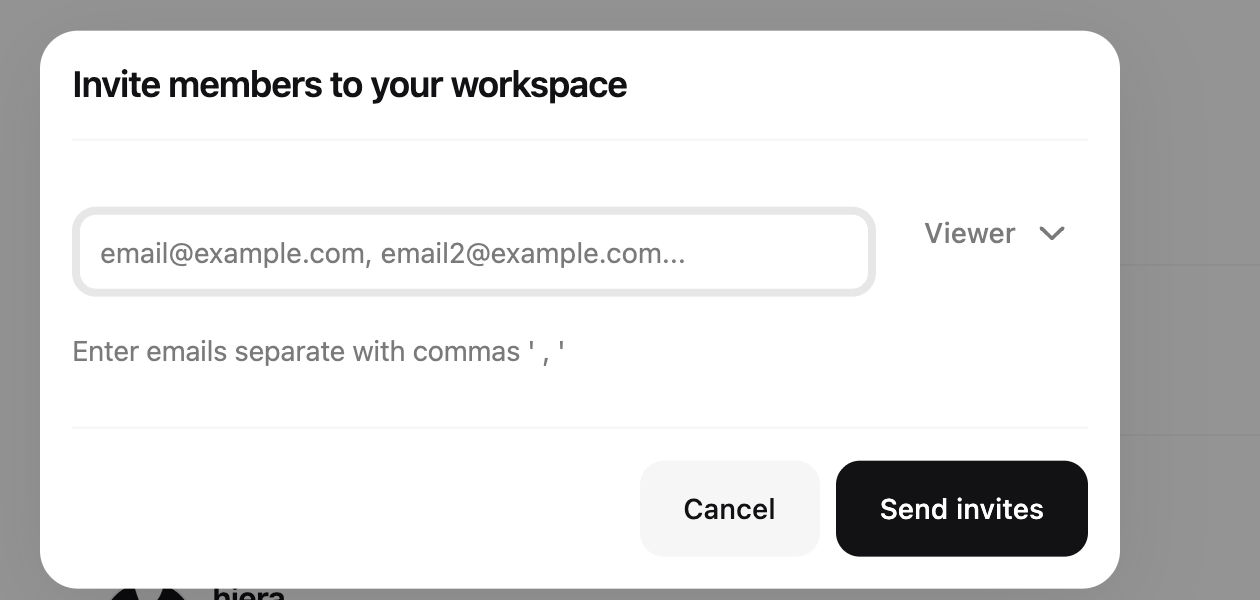
Invite teammates from Settings → Members for workspace-wide access, or invite someone into a single project when that is all they need. Invitations arrive by email, and pending invites show up in your sidebar until they are accepted.