Share a file with a link
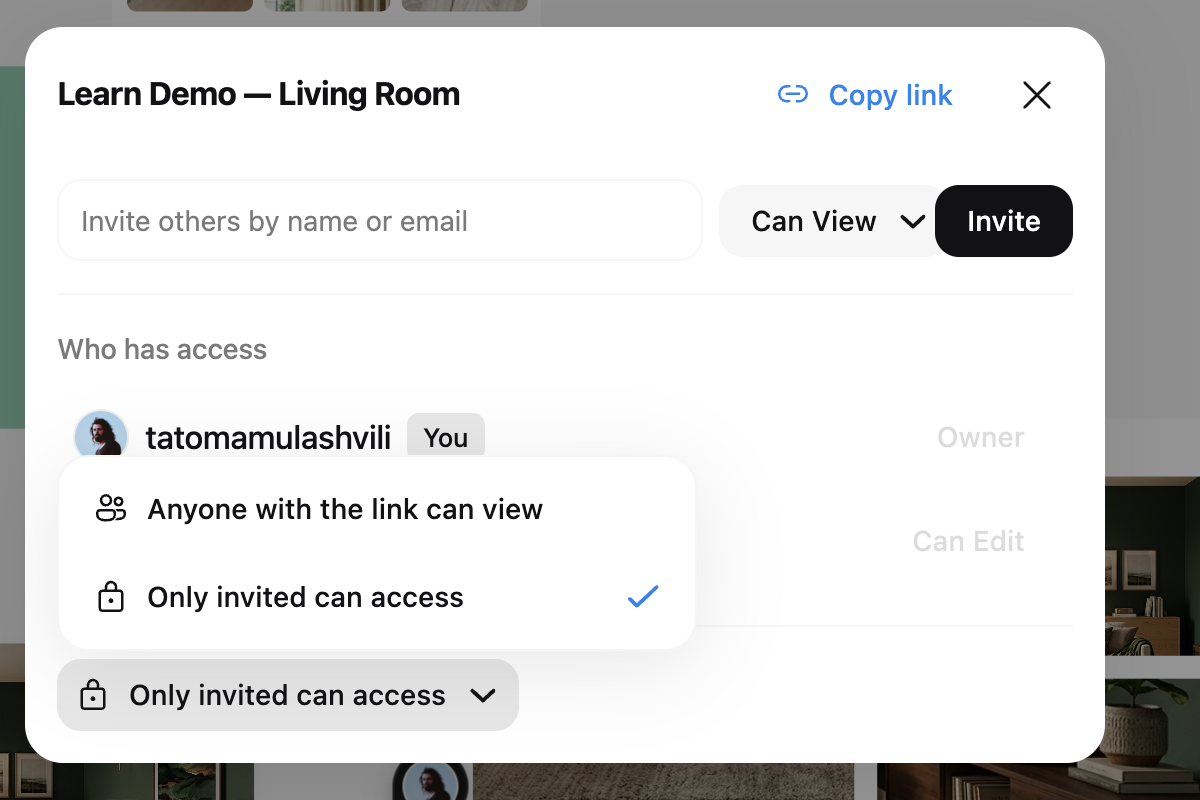
Any project can be shared the way you would share a Figma file — with a link, publicly. Every file starts private: the access selector at the bottom of the Share dialog reads “Only invited can access”. Flip it to “Anyone with the link can view” and the file becomes publicly viewable — send the link to a client and they see the live canvas in read-only mode, no Hiera account required.
- Open ShareThe Share button sits in the top-right of every file.
- Switch the link access
In the selector at the bottom of the dialog, change “Only invited can access” to “Anyone with the link can view”. Flip it back any time to make the file private again — the old link simply stops working for outsiders.
- Copy link and send it
Viewers always see the latest version — no exported PDFs going stale in an inbox.
Requesting access
If someone opens a link to a private file, they do not hit a dead end — they see a request-access screen. The owner gets a notification, approves or declines, and the requester is let in with view rights — the same flow you know from Figma or Google Docs.
Notes vs. comments
Notes N and comments solve different problems. Notes are part of the canvas — use them for annotations, labels and context you want everyone to see as part of the work. Comments are for discussion — questions, feedback and decisions that get resolved and archived.
A good rule of thumb: if it should still be visible when the discussion is over, make it a note.
Inviting teammates
For people you work with regularly, invites beat links: workspace members see every project, while project invites scope access to a single project. Invited teammates can edit, comment and generate — link viewers can only look.
Pin comments on the canvas
Feedback works best next to the thing it is about. With the comment tool C, click anywhere on the canvas to pin a comment to that exact spot — a specific image, a material, a corner of a render. Replies thread under the pin, so discussions stay organized.
Type @ and a name — they get notified and can jump straight to your pin.