Four blocks, one canvas
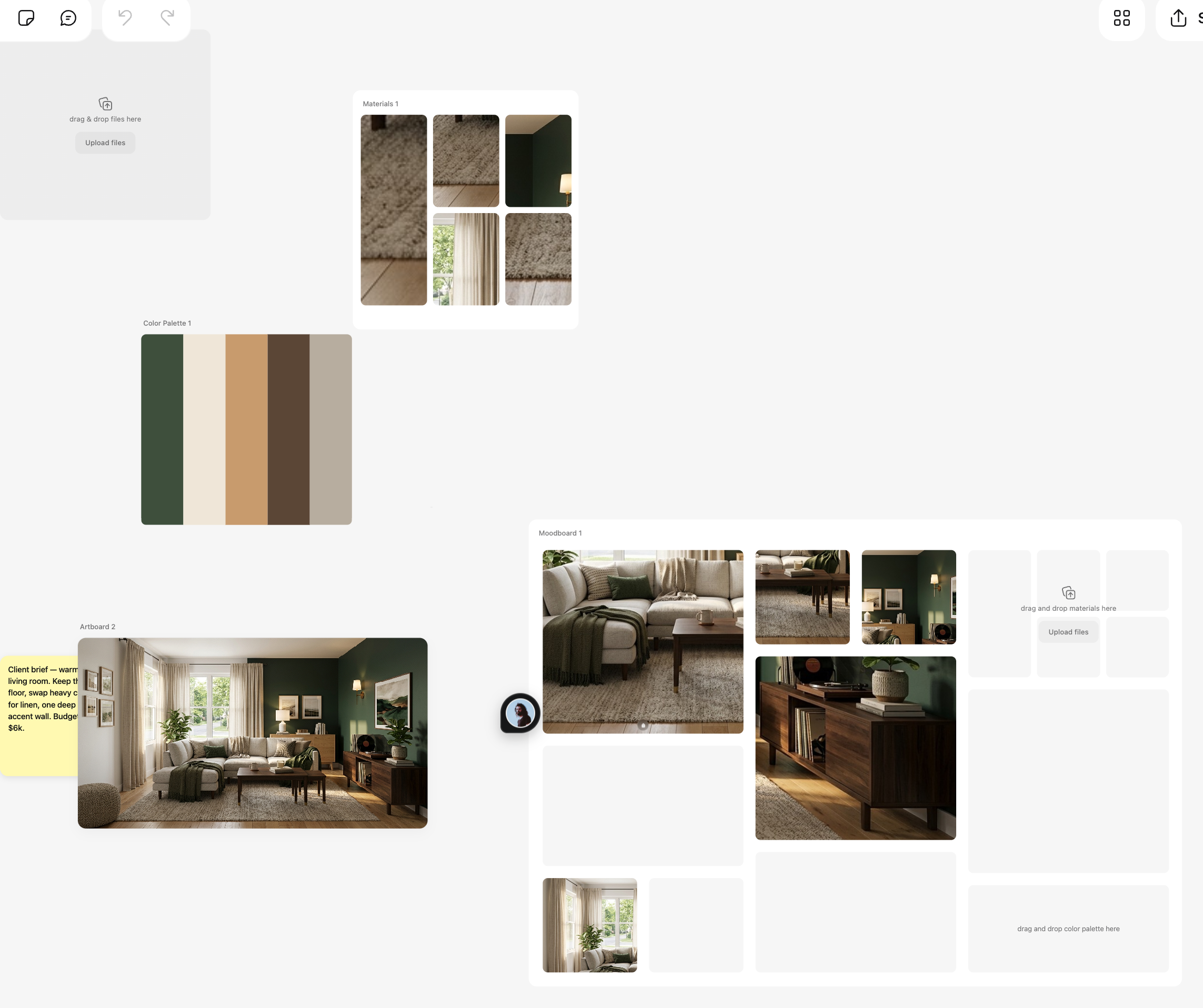
Beyond images and notes, the canvas has four structured blocks, each with a single-key shortcut: an artboard A, a color palette P, a materials board M and a moodboard B. Press the key and click anywhere on the canvas to place one.
Artboards
An artboard is a framed image you refine: crop it, mark a region for AI edits, or use its toolbar to iterate. It is the natural home for the visuals you are actively working on — reference photos stay loose on the canvas, work-in-progress lives on artboards.
Color palettes
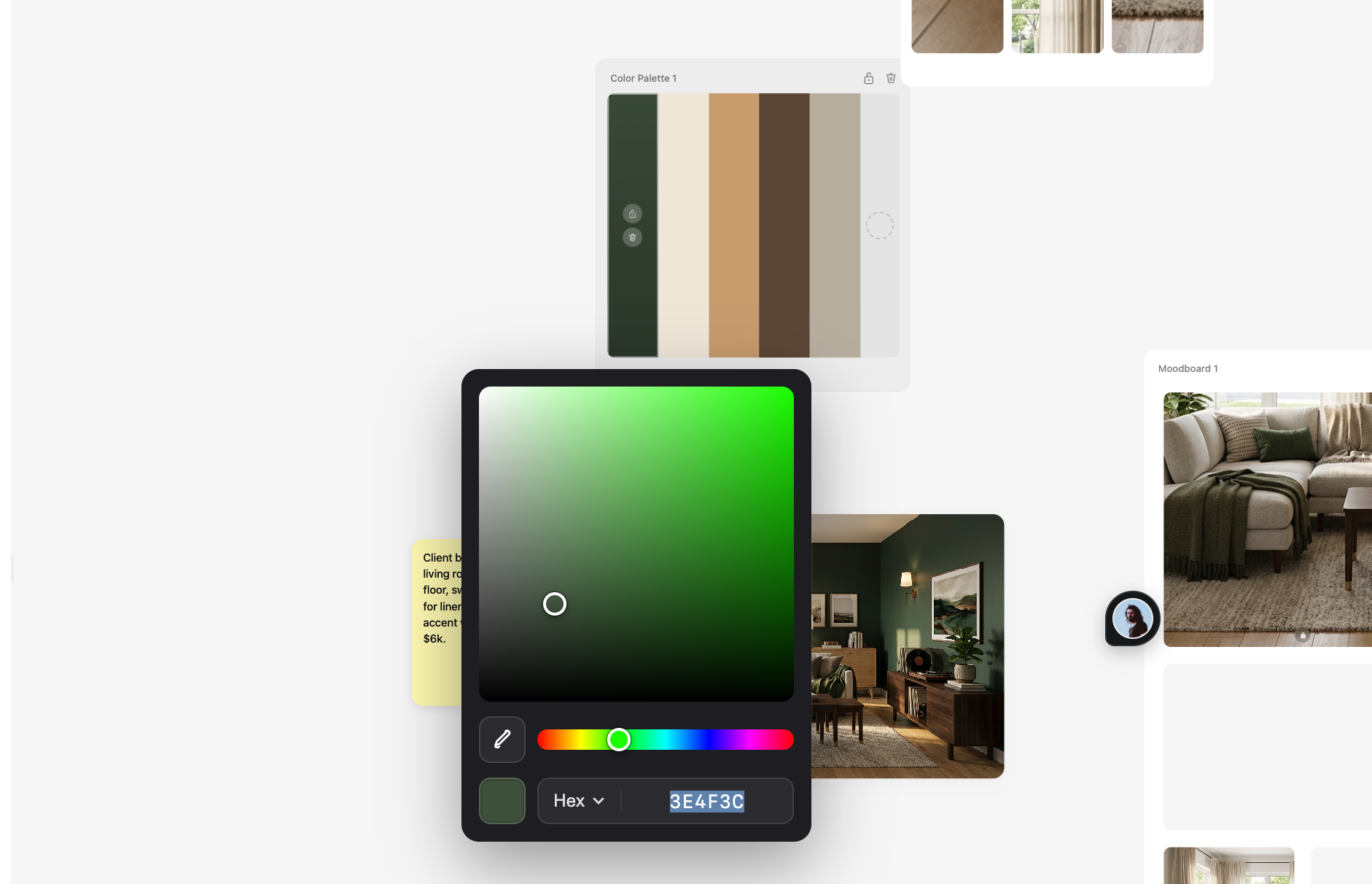
A palette holds the colors of your scheme. Click any swatch to open the picker and fine-tune it — values can be read and entered as Hex, RGB, HSL or HSB, so matching a paint code or a brand color is exact, not approximate.
Materials boards
Materials boards collect textures and finishes — wood, stone, fabric, metal. Drag images in from your computer or from elsewhere on the canvas, and drag a material out onto a moodboard when it earns its place in the concept.
Moodboards
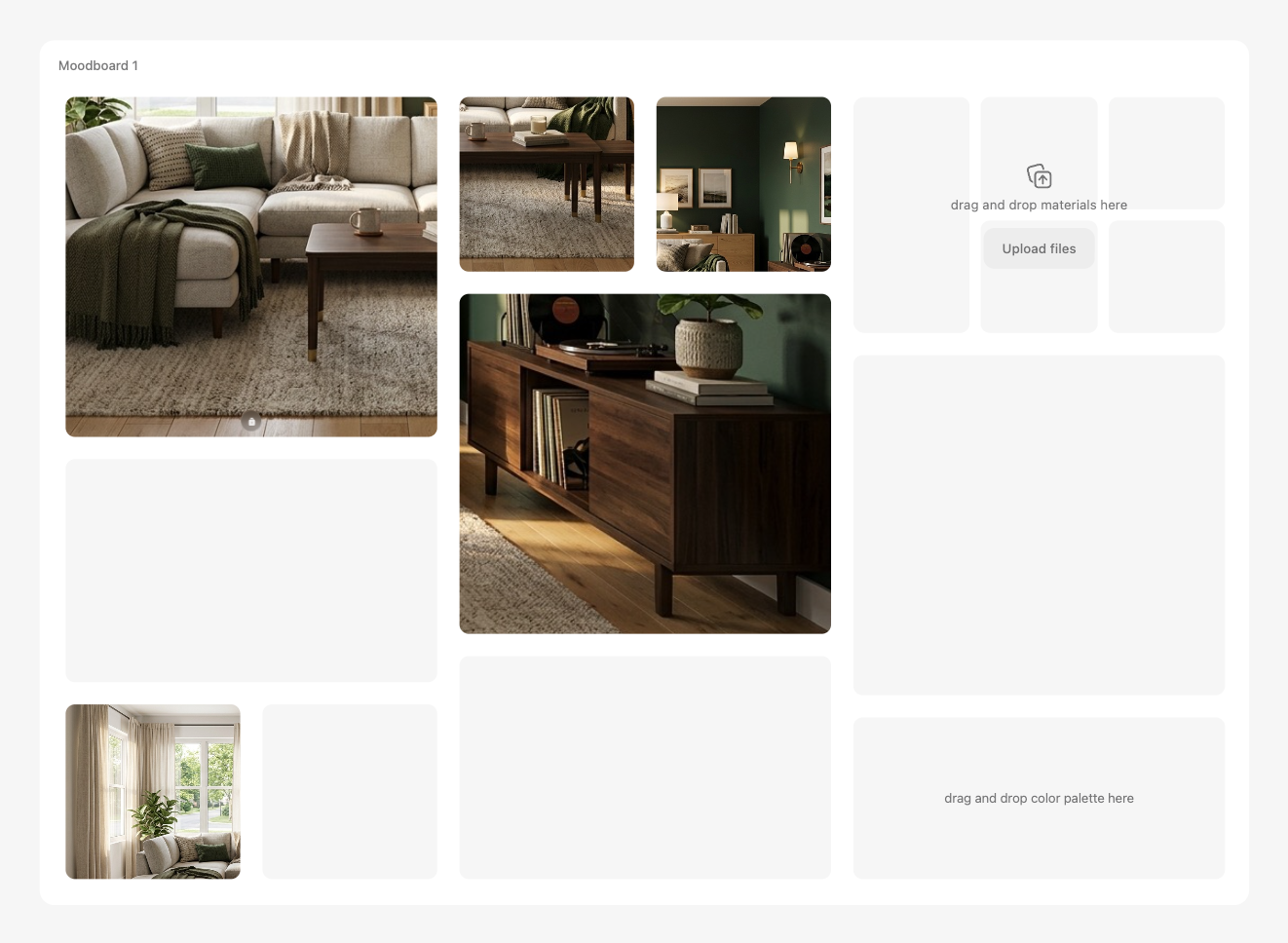
A moodboard arranges images into fixed slots, so the composition stays tidy as the concept evolves. Drop an image on a slot to fill it, and lock a slot when an image is final — locked slots will not be replaced by an accidental drop.
Working fast with blocks
- Duplicate and iterate
⌘ D duplicates the selection, ⌘ C / ⌘ V copy and paste — try two palette directions side by side instead of overwriting one.
- Tidy the canvas
Select a messy cluster and press S for auto layout — Hiera arranges the selection into a clean grid.
- Undo without fear
⌘ Z undoes, Delete removes the selection, Esc deselects everything.
Everything on the canvas is collaborative in real time — when a teammate rearranges a moodboard, you see it move live.
Blocks are also where AI shines: generate design ideas with AI and the results land right back on your canvas.