Placing a note
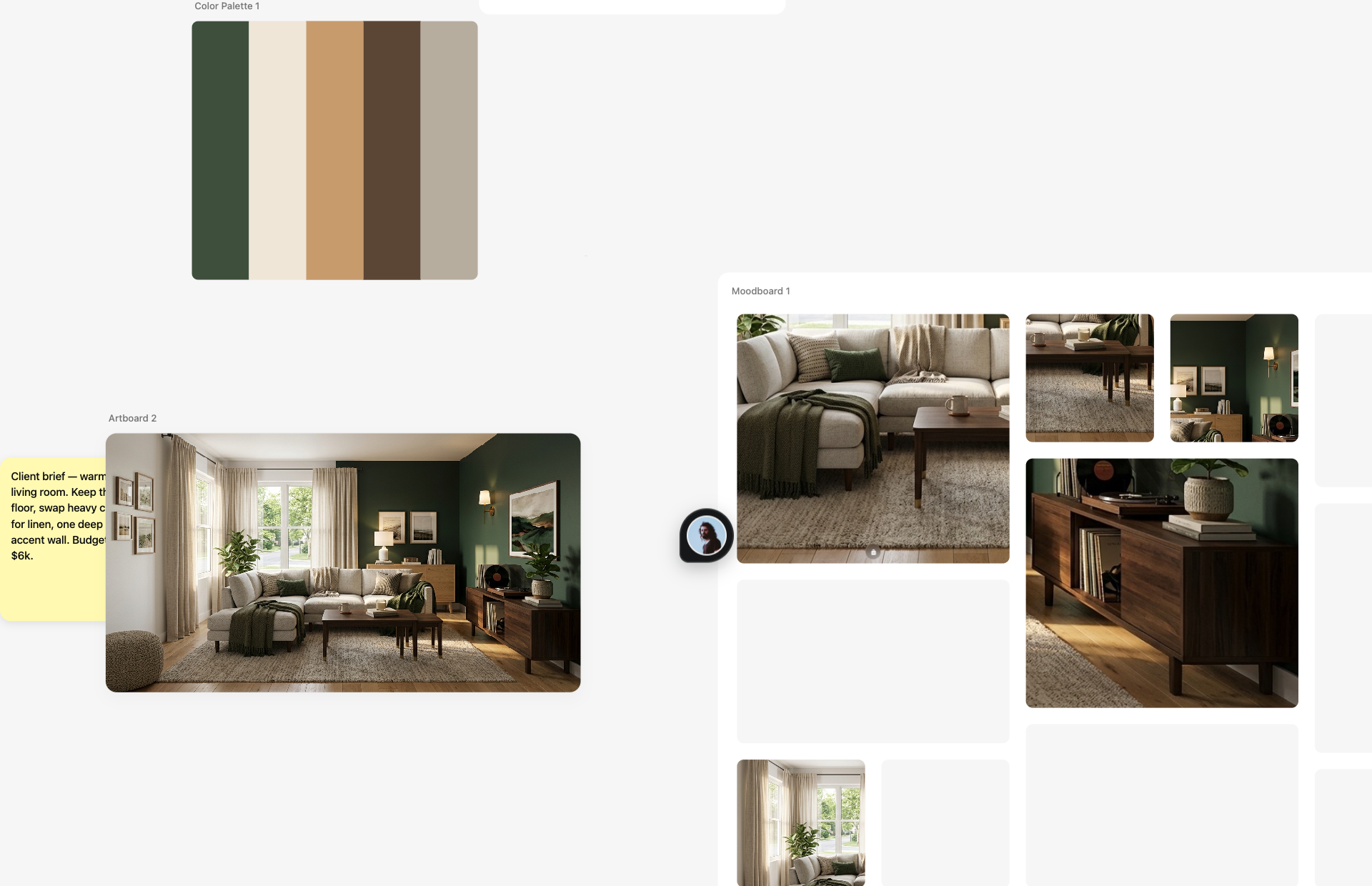
Press N or pick the note tool from the toolbar, then click where the note should live. Notes sit directly on the canvas next to the work they describe — briefs, measurements, client constraints, to-dos.
Formatting text
Notes are rich text. Select text inside a note and use its toolbar for bold, italic, underline and strikethrough, plus bulleted and numbered lists — enough structure for a brief without leaving the canvas.
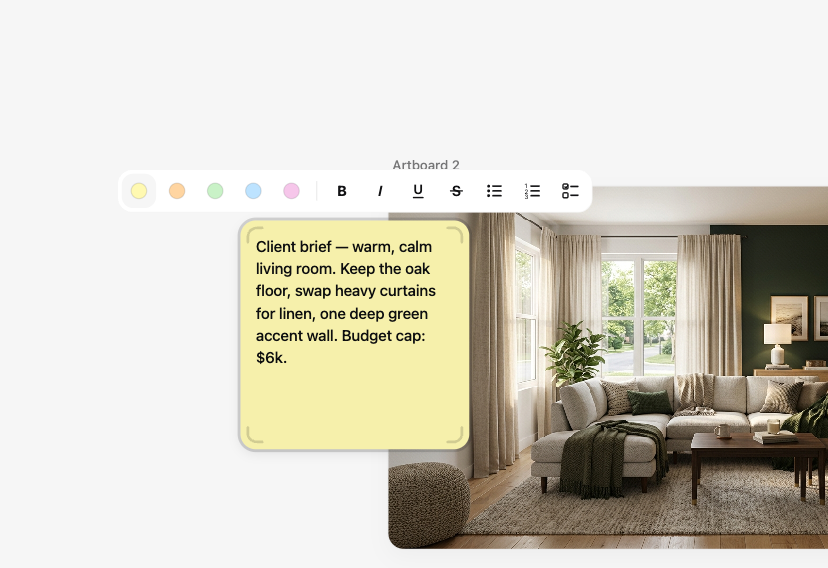
Notes also come in several colors — use them consistently (say, yellow for open questions, green for approved decisions) and the canvas becomes scannable at a glance.
Notes vs. comments
A note is part of the canvas: it stays where you put it and belongs to the design context. A comment is a conversation: it is pinned to a spot, collects replies, and can mention teammates to notify them. Rule of thumb — information goes in a note, discussion goes in a comment.
Working through feedback with a client or teammate? That is comment territory — see sharing and commenting.