How AI generation works in Hiera
Hiera’s AI is built for interiors. Describe the space you have in mind — style, mood, materials — and optionally point it at reference images already on your canvas. Results land on the canvas as images you can arrange, compare and iterate on like any other visual, so exploring ten directions is as natural as exploring one.
Your first generation
- Open the AI panel
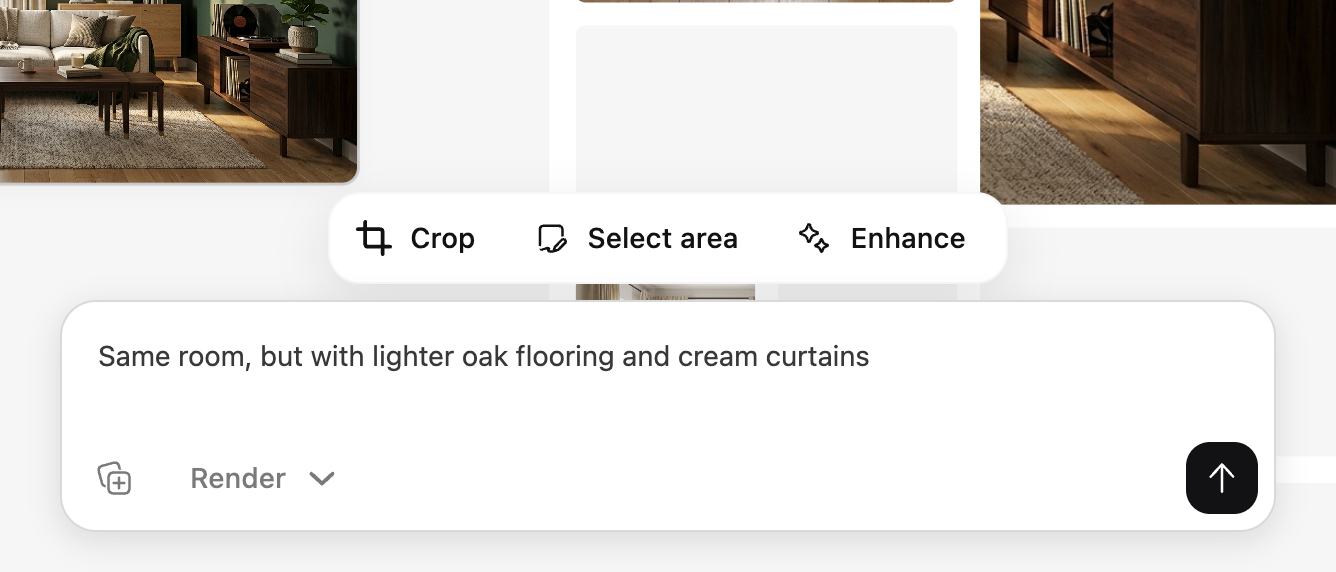
Select an image or an empty spot on the canvas and open the AI input.
- Describe what you want
Be specific: “warm minimalist living room, oak floor, linen sofa, morning light” beats “nice room”.
- Generate
The result appears right on your canvas. Not quite right? Adjust the prompt and run it again — iteration is the workflow.
Edit just one region
Love the room but not the sofa? Instead of regenerating the whole image, mark the area you want to change, describe the replacement, and Hiera regenerates only that region while keeping the rest of the image untouched.
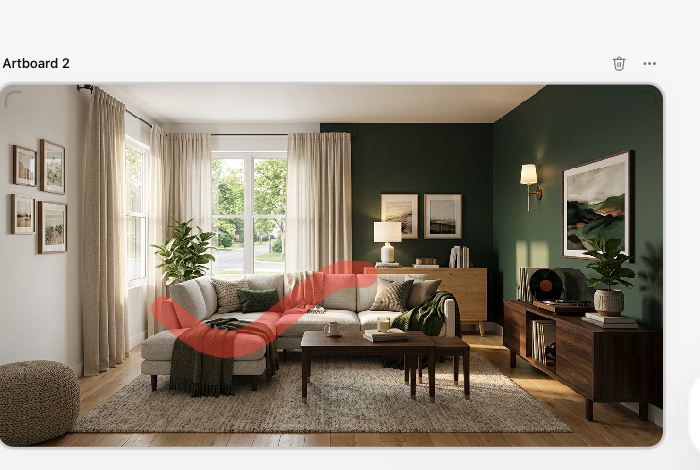
Tight selections and specific prompts give the best region edits — mark just the sofa, not half the room.
Understanding credits
Hiera is free to use — AI generations are the only thing that consumes credits. You can check your balance and top up anytime in Settings → Top up. Credits are pay-as-you-go: no subscription, no expiry pressure, you only buy what you use.
Tips for better results
Name the style (“japandi”, “mid-century modern”), the materials (“travertine”, “walnut”, “bouclé”) and the light (“golden hour”, “soft overcast”). Keep reference images near your prompt on the canvas, generate a few variants before committing to a direction, and use region edit to polish the winner instead of chasing a perfect single shot.