What it does
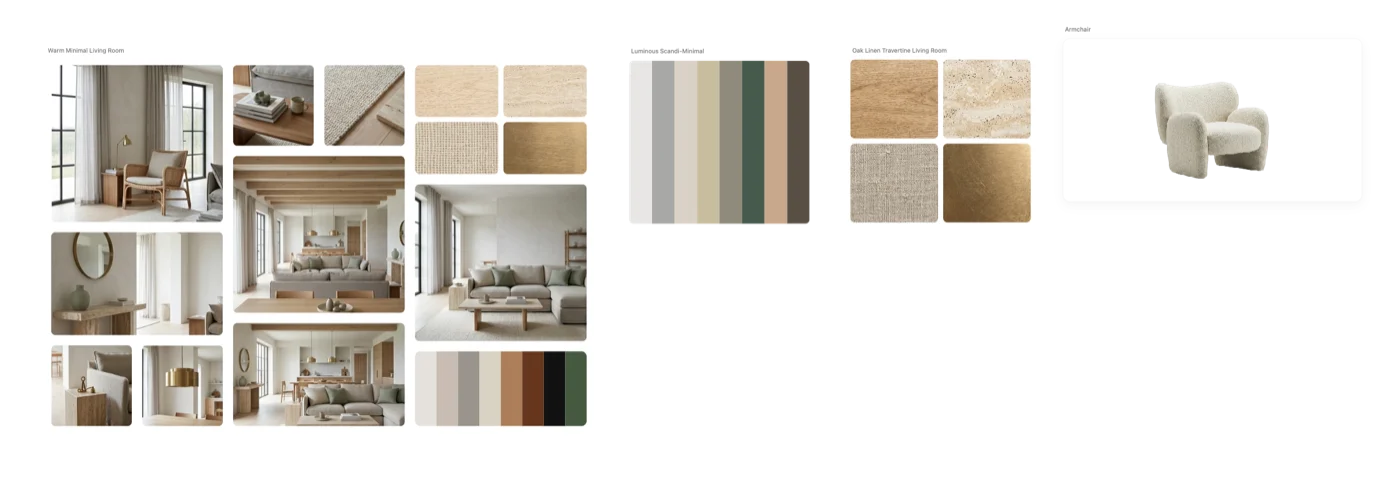
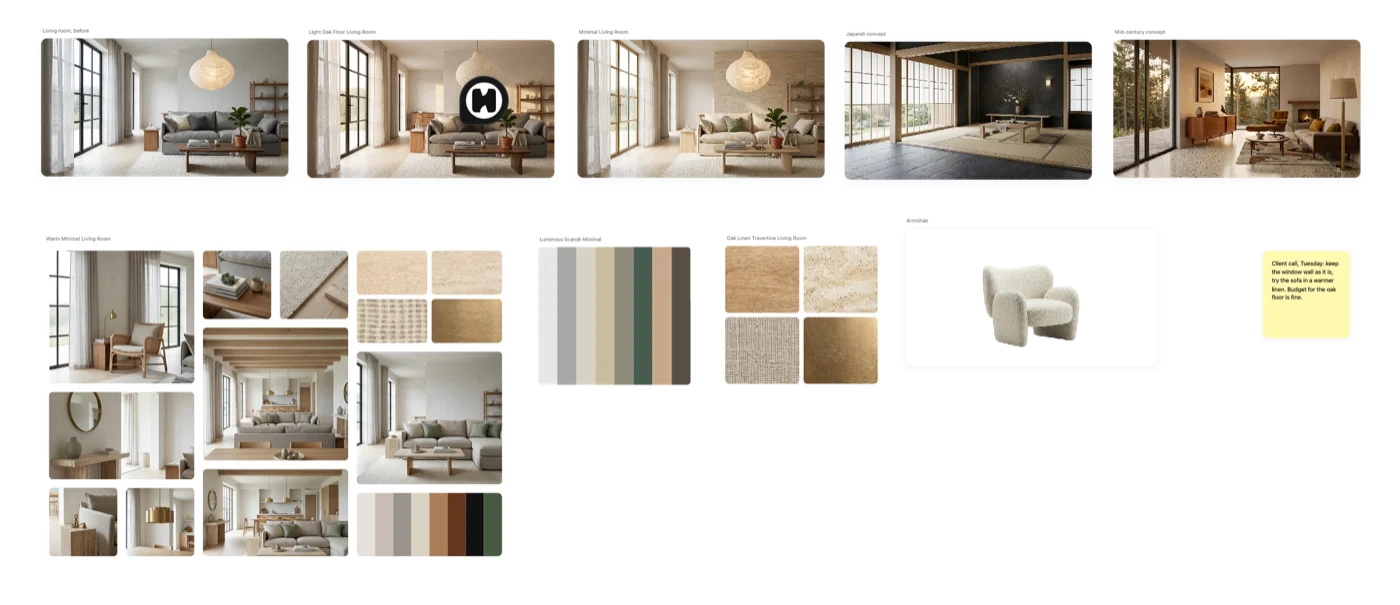
Hiera in ChatGPT saves images from a ChatGPT conversation, ones ChatGPT made or ones you attached, onto the board of a Hiera project. ChatGPT makes and edits the images, on your ChatGPT plan; Hiera only saves them, so saving uses no Hiera credits.
Hiera can also add a page to a project, for example when you name a page it doesn't have yet, or start a new project when you ask for one.
It works in ChatGPT on the web and in the desktop and mobile apps. Codex isn't supported.
Connect Hiera to ChatGPT
- Find Hiera in ChatGPT
In ChatGPT, open Plugins, search for Hiera and choose Connect.
- Sign in to Hiera
ChatGPT opens Hiera. If you aren't signed in, sign in with the account whose projects you want to save to. If you are, Hiera uses that account: check the email on the next screen, and choose Cancel if it's the wrong one.
- Allow
Hiera lists what ChatGPT will be able to do. Choose Allow, and ChatGPT takes you back to the conversation.
If Hiera says the request has expired (it waits 10 minutes), go back to ChatGPT and choose Connect again.
ChatGPT saves only into projects you can edit, and creates projects only in a workspace you own or edit; it can't create a workspace. No workspace yet? Set one up in Hiera. No project? Create one in Hiera, or ask ChatGPT to.
Save an image
In a conversation, type @ or open the + menu, pick Hiera, and say what to save and where: “put this image in my Hiera project Vake flat”, or “save the last two renders to the Kitchen page”. Saved images appear straight away for anyone with the page open, added by you.
Unless you name a page, images go on the project's ChatGPT page, which Hiera adds at the end of the project when there is none (and “ChatGPT 2” once it is full). Hiera finds that page by its name, so if you rename it, the next image goes on a new ChatGPT page. If a page you name is full, Hiera doesn't save there: name another page, or leave the page out to use the ChatGPT page.
ChatGPT gives each image a short subject. Images with the same subject line up in one row, numbered as versions (“Bathroom · 2”), each new one at the right end of the row; say “another version of the bathroom” to keep it there. When the page is full, the next version starts a new row on the next ChatGPT page. A short note can go beside an image when it matters.
If the project has no cover yet, the image becomes its cover. To change it, right-click another artboard and choose Set as thumbnail.
With Hiera picked, ChatGPT sometimes looks for an image tool in Hiera instead of making the image itself. Hiera can't make or edit images. Ask ChatGPT to make the image first and save it in a second message, or reply “go ahead and make it, then save it”.
What ChatGPT can see and do in Hiera
Once connected, ChatGPT can, as you:
- See names
The names of the projects you can edit (the 100 most recently created), of their pages and workspaces, and of the workspaces where you can create projects.
- Add images
Add images to those projects as new artboards, with a short note beside one when it matters.
- Add pages and projects
Add pages to those projects, and create new projects in workspaces where you can. If a project already has a page with the name it asks for, Hiera uses that page rather than adding a second one.
It can't open your boards, read comments, or spend credits, and it can't change or delete anything already in a project, apart from giving a project with no cover its first saved image as the cover. What ChatGPT keeps from the conversation is up to OpenAI; how Hiera handles your data is in the Privacy Policy.
Images Hiera takes
PNG, JPEG, WebP and GIF, up to 25 MB, 8,192 px on the longest side and 40 megapixels, and no more than 7.5 times as long on one side as on the other. Hiera takes images only from ChatGPT's own file storage, so attach an image to the conversation rather than pasting a link to it.
Disconnect
In Hiera, open Settings → Connected apps and choose Disconnect next to ChatGPT. ChatGPT loses access straight away; the images, pages and projects it added stay in your projects. If ChatGPT is listed more than once (you connected again, or from another ChatGPT account), disconnect each one.
Removing Hiera in ChatGPT's settings stops ChatGPT using it, but Hiera keeps the connection until you disconnect it in Hiera, or until it goes unused for 60 days. To be sure, disconnect in Hiera. To use Hiera in ChatGPT again later, connect it again from ChatGPT.
Get help
Email [email protected] with what you asked ChatGPT, the message it showed, and roughly when it happened.